This is a little VBS script I pieced together back in 2007. Its purpose is to connect to Active Directory and list out all domain groups and their users into a nice CSV file. If you have proper permissions on the domain just double click and it will save a csv file to c:\groupswithusers.csv.
Purpose: List out all domain groups with users
Note: There could be an issue listing out Domain Users group that I never fixed.
'Tony Unger Nov 2007
'if you have questions, i may or may not be able to answer them
'This script returns all the groups with their members in this format
'"Group,Display name,Account Name,Group Scope,Group Type"
'I did it that way for easy import into excel
'Tested to work on
'2000 Mixed mode
'2000 Native Mode
'2003 Mode
'It should auto find the domain it is ran from.. if not look for strDNSDomain and fill in your information
'This was pieced together from many sources but mainly
'http://www.computerperformance.co.uk/vbscript/index.htm
'And a few others
'Use at your own risk, but i have never had an issue running this.

On Error Resume Next
Dim PathtoCSV
Dim Dil
PathtoCSV = "c:\GroupsWithUsers.csv" ' change the path here
dil = ","    'how do you want the values to be separated ?  by , ; etc
Dim objConnection, objCommand, objRootDSE, strDNSDomain
Dim strFilter, strQuery, objRecordSet, strgt
DIM fso, GuyFile ' write to text file


Set objConnection = CreateObject("ADODB.Connection")
Set objCommand = CreateObject("ADODB.Command")


objConnection.Provider = "ADsDSOOBject"
objConnection.Open "Active Directory Provider"
Set objCommand.ActiveConnection = objConnection
Set objRootDSE = GetObject("LDAP://RootDSE") 'bind the user object to Active Directory
Set fso = CreateObject("Scripting.FileSystemObject")
Set GuyFile = fso.CreateTextFile(PathtoCSV, True)

'Writes 1st line(Header) to text file
GuyFile.WriteLine("Group Name" & dil & "Display Name" & dil & "Account Name" & dil & "Group Scope" & dil &  "Group Type" & dil & "Last Password Set")

'Get domain if this doesn't work in auto finding the domain can try the commented out
strDNSDomain = objRootDSE.Get("defaultNamingContext")
'strDNSDomain = DC=microsoft,DC=com

strBase = ""

'Define the filter elements
strFilter = "(&(objectCategory=group))"

'List all attributes you will require
strAttributes = "distinguishedName,sAMAccountName,groupType"

'compose query
strQuery = strBase & ";" & strFilter & ";" & strAttributes & ";subtree"
objCommand.CommandText = strQuery
objCommand.Properties("Page Size") = 99999
objCommand.Properties("Timeout") = 300
objCommand.Properties("Cache Results") = False

Set objRecordSet = objCommand.Execute
objRecordSet.MoveFirst

Do Until objRecordSet.EOF
    strDN = objRecordSet.Fields("distinguishedName") ' returns ldap path
    strSA = objRecordSet.Fields("sAMAccountName") ' returns Group name
    strgt = objRecordSet.Fields("groupType")
    If (strgt ANd &h01) <> 0 then
        Scope = "BuiltIn Local"
    ElseIf (strgt And &h02) <> 0 Then
        Scope = "Global"
    ElseIf (strgt And &h04) <> 0 Then
        Scope = "Domain Local"
    ElseIf (strgt And &h08) <> 0 Then
        Scope = "Universal"
    End If
    If (strgt And &h80000000) <> 0 Then
        SecDst = "Security Type"
    Else
        SecDst = "Distribution Type"
    End If

    'strDN Prints ex CN=IIS_WPG,OU=IT Dept,OU=Groups,DC=XXXX,DC=com   Sweet!!!
    'Wscript.Echo  strDN

    Set objGroup = GetObject("LDAP://" & strDN & "")

    For Each objUser in objGroup.Members
    'The mid function is set to start at char 4 on the returned string of objUser.Name to not write CN= to the csv file
    'If you wanted to only write certain groups and their members to the CSV file then uncomment the line below and the end if and follow the example
    'If strSA = "Domain Admins" or strSA = "Administrators" or strSA = "Enterprise Admins"
          GuyFile.WriteLine(strSA & dil & objUser.displayName & dil & mid(objUser.Name,4) & dil & Scope & dil &  SecDst & dil & objUser.PasswordLastChanged)
    'End If
     Next
    objRecordSet.MoveNext ' moves to next member in group
Loop


GuyFile.Close
objConnection.Close
PathtoCSV = nothing
Set objConnection = Nothing
Set objCommand = Nothing
Set objRootDSE = Nothing
Set objRecordSet = Nothing
WScript.Echo "Done! CSV file saved to: " & PathtoCSV
I wrote up a little program that is similar to my touch screen runas program just missing the buttons.
Here is the source code
You will need to create a couple buttons and three text boxes.
txtpassword
txtusername
txtpath
and two buttons one for running the program and one for exit.
Requires VB.net Express 2010
Imports System.Security
Imports System.ComponentModel

Public Class frmMain

    Private Sub Form1_Load(sender As System.Object, e As System.EventArgs) Handles MyBase.Load

    End Sub
    Function ConvertToSecureString(ByVal str As String)
        Dim password As New SecureString
        For Each c As Char In str.ToCharArray
            password.AppendChar(c)
        Next
        Return password
    End Function

    Private Sub Step1_UsernamesPasswords()

        Dim strUsername As String
        Dim strpassword As SecureString = ConvertToSecureString(txtpassword.Text)
        Dim strCommand As String = txtpath.Text

        ' MsgBox(strCommand)

        strUsername = txtusername.Text


        'If username = nothing display error then exit sub
        If strUsername = Nothing Then
            MsgBox("Error: Please enter a username", , "Error!")
            Exit Sub
        End If

        'the username is then set to a lowercase
        strUsername = LCase(strUsername)

        'Removes all spaces from username
        strUsername = strUsername.Replace(" ", "")


        Step2_Runas(strCommand, strUsername, strpassword)
    End Sub


    Private Sub Step2_Runas(strpathSecure As String, strusername As String, strpassword As SecureString)

        ' Process.Start(strpath, strusername, strpassword, ".")
        Dim pinfo = New System.Diagnostics.ProcessStartInfo
        Dim workingFolder = "c:"
        Dim strArguments As String = ""
        Dim intstrpathsecure As Integer = strpathSecure.Count
        Dim checkforspace
        Dim strlast3characters As String = ""
        Dim strchecklast3char As String
        Dim strErrorMsg As String

        'Checks for an argument and set strArguments if found
        For i = 0 To intstrpathsecure - 1
            strlast3characters = strlast3characters & strpathSecure.Chars(i) 'all characters
            checkforspace = strpathSecure.Chars(i) 'char that currently on

            strchecklast3char = Microsoft.VisualBasic.Right(strlast3characters, 4) ' last 4 chars.
            'This detects when "exe " and there is a space then set arguements values and strpathsecure
            If checkforspace = " " And strchecklast3char = "exe " Or checkforspace = " " And strchecklast3char = "bat " Then
                strArguments = Microsoft.VisualBasic.Mid(strpathSecure, i + 2)
                strpathSecure = Microsoft.VisualBasic.Left(strpathSecure, i)
                Exit For
            End If
        Next i

        pinfo.FileName = strpathSecure
        pinfo.WorkingDirectory = workingFolder
        pinfo.LoadUserProfile = True
        pinfo.UseShellExecute = False
        pinfo.UserName = strusername
        pinfo.Password = strpassword
        pinfo.Arguments = strArguments
        pinfo.Domain = "."

        Try


            System.Diagnostics.Process.Start(pinfo)

        Catch ex As Win32Exception
            'Error Message


            strErrorMsg = "Error: " & ex.Message.ToString & vbNewLine & _
                            "___________________________________________________________ " & vbNewLine & vbNewLine & _
                            "File Path: " & strpathSecure & vbNewLine & _
                            "Arguments: " & strArguments & vbNewLine & _
                            "Username: " & pinfo.UserName & vbNewLine & _
                            "WorkingDirectory: " & pinfo.WorkingDirectory & vbNewLine & _
                            "Time Stamp: " & TimeOfDay & " on " & Date.Today


            'Debug.Assert(False, ex.Message)


            MessageBox.Show(strErrorMsg, "Error logging in as administrator", MessageBoxButtons.OK, MessageBoxIcon.Error)

        End Try
    End Sub

    Private Sub cmdRun_Click(sender As System.Object, e As System.EventArgs) Handles cmdRun.Click
        Step1_UsernamesPasswords()


    End Sub

    Private Sub Button1_Click(sender As System.Object, e As System.EventArgs) Handles Button1.Click
        End
    End Sub
End Class
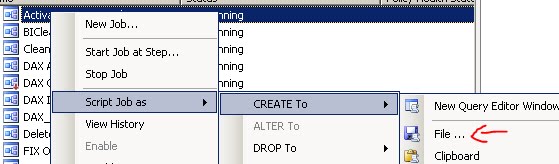
1. Click on Jobs under SQL Server Agent
2. For 2005 click on the Summary Tab, 2008 Object Explorer Details Tab under View
3. Select the all the jobs you wish to backup listed in the object explorer details tab
4. Right Mouse click and select Script Job As -> Create To -> File
5. Save the sql file to the new server
6. Execute the sql generated script on the new server and the jobs should populate
The purpose of this application is i needed a way to audit NTFS folder permissions on my file server, so instead of using one of the 3rd party programs available I wrote this one.
It contains a batch file for running the executable and a text file called exclude.txt for excluding certain user names from being added to the report. Just extract the zip to a folder and run the batch file you will be asked for the path(non-UNC at the moment)after the executable is done running the report will open in notepad.
In the future I will have the report export to comma delimited format.
Note there isn't any error checking really in this application so be sure to put the correct path (ex z:\temp)
When using the exclude.txt be sure to place each username on its own line. This utility only goes one level down so if you are auditing c:\temp it will only audit the top level folders within c:\temp
As with any program here use at your own risk.
Link to files
If you would like the source code leave a comment.